Part of the guide: How Teams Search Across All Their Work Apps With AI
Can an AI Workspace Search Across All Your Documents?

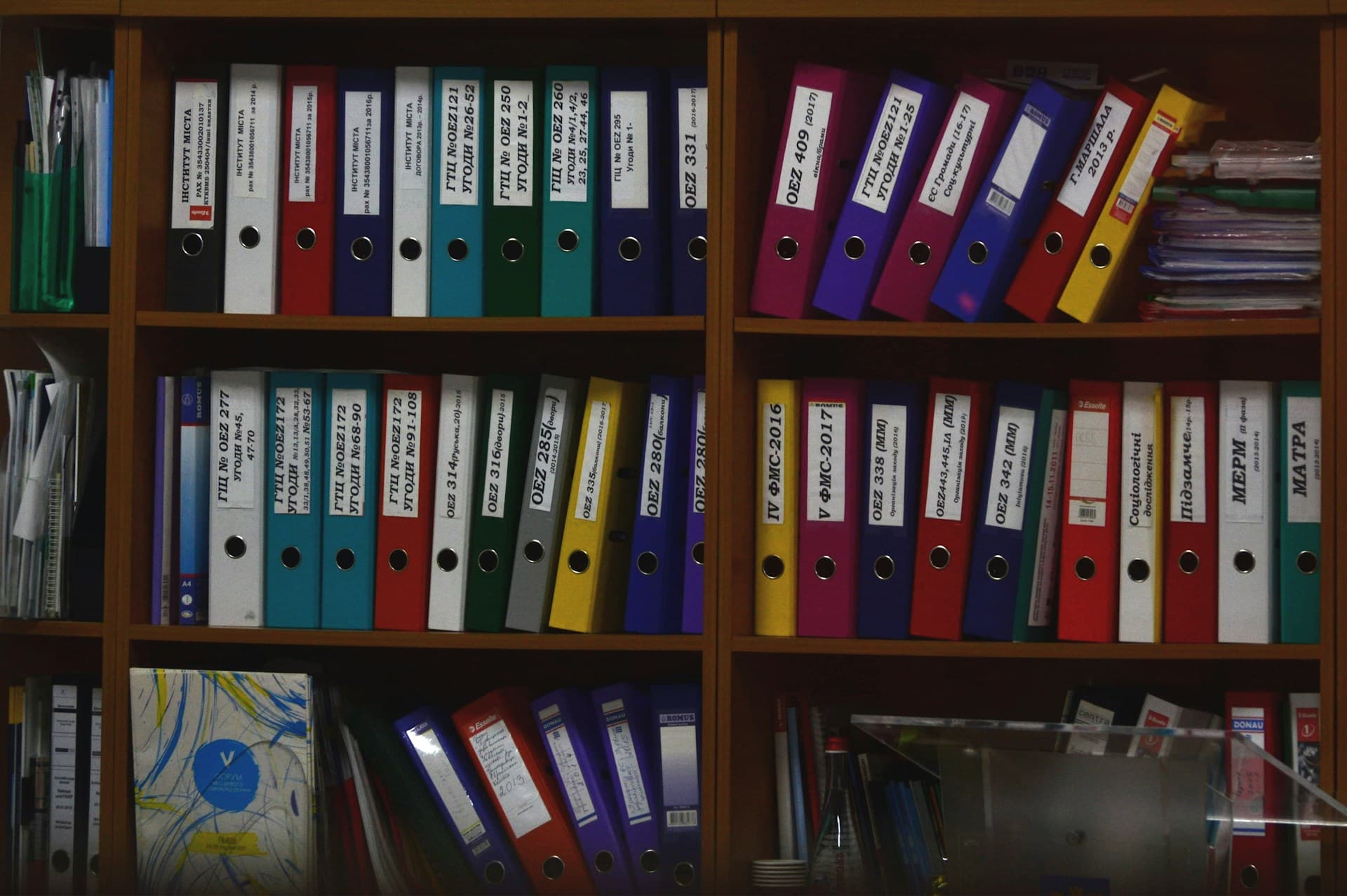
Short answer: yes, for what you've actually given it
Yes — an AI workspace like UniDeck can search across your documents, as long as those documents are uploaded or connected. Ask a question, and it finds the relevant passages across your files and answers with a citation pointing to the document, page, and passage it came from. You don't have to open five PDFs and skim for a number; you ask, and you get an answer you can check.
The honest caveat is in the word "your." An AI workspace searches what it can reach — the files you've uploaded and the sources you've connected — not some universal index of every document that has ever existed. If a file was never added to the workspace, it can't be searched, no matter how the question is phrased. That's not a limitation unique to UniDeck; it's how grounded search works anywhere. This post covers what that actually means in practice, and how it fits into the broader question of how teams search across work apps with AI.
What "search across all your documents" actually means
It's worth being precise here, because "AI search" gets used for two different things. One is a chatbot answering from general training — it has never seen your documents and will still produce a confident-sounding paragraph if you ask it something specific. The other is retrieval: the system reads your actual files, finds the passages that bear on your question, and has the model compose an answer grounded in those passages, with a citation back to the source.
That second kind is what's actually useful, and it's worth naming honestly rather than reaching for a vaguer term like "semantic search." It isn't one giant index that quietly "understands" your entire document library. It's retrieval over the specific files you've brought in — the system surfaces the passages most relevant to your question, and the answer is built from those, not recited from memory. When your documents don't actually contain the answer, a grounded system should say so instead of guessing. That combination — retrieval plus a checkable citation — is the difference between an AI workspace with citations and a plausible-sounding guess.
How it works in practice
The mechanics are simple, even if the retrieval behind them isn't. You add documents to a workspace folder — upload files directly, or bring in files you already have stored elsewhere. Then you ask a question in plain language, the way you'd ask a colleague who had actually read the files: "what's the notice period in that vendor agreement?" or "what did the Q2 report say about churn?"
The response comes back grounded in your documents, not a general answer about vendor agreements or churn in the abstract. And it comes with a citation — the specific document, page, and passage the answer was pulled from — so you can open the source and confirm it before you rely on it or repeat it to someone else. That loop, ask and verify, is what makes the answer usable for real work rather than a rough first guess to be double-checked from scratch anyway.
Which documents and sources
In practice, "your documents" means two things. The first is whatever you upload directly — PDFs, spreadsheets, slide decks, and other common file types, organized into folders by project or client. The second is files you import from where they already live: Google Drive, Dropbox, OneDrive, and Box are supported today, so a Google Drive AI assistant workflow works the same way as an upload — bring the relevant Drive documents into a workspace folder, and they become searchable with citations back to the original file.
Beyond files, UniDeck also connects to apps like Slack, Gmail, and Notion so a question can draw on conversations and context outside of static documents, not just PDFs and sheets. That's a broader topic on its own — the short version for documents specifically is: if it's uploaded or imported into a workspace, it's searchable; if it isn't, it isn't.
Honest limits
None of this is magic, and it's worth saying plainly where it falls short. The quality of an answer depends entirely on the quality of what you gave it. A folder of clean, relevant, up-to-date documents produces sharp, well-grounded answers. A shared drive nobody has organized in years produces exactly what you'd expect: retrieval struggles to find the right passage when the right passage is buried in duplicates, outdated drafts, and files with no clear naming.
There are narrower limits too. Search only reaches documents that have been uploaded or connected — nothing sitting on someone's laptop or in an app that isn't linked. And grounding reduces confident guessing; it doesn't eliminate the need to check. The citation is there so you can verify quickly, not so you can skip verifying. Treat the answer as a well-sourced first draft, not a final word — that's the honest way to use any AI system that touches documents you'll act on.
How this differs from a generic AI chat tool
This is the real gap between an AI workspace and the chat tool most people already have open in a browser tab. A general-purpose assistant is genuinely good at open-ended writing and explaining, but by default it can't see your files at all — anything specific to your documents either gets pasted in by hand, one file at a time, or the assistant answers from general knowledge that was never yours to begin with.
Two things change once documents are actually connected: the answer is grounded in what your files say instead of what's statistically likely, and it comes with a citation you can check instead of a claim you have to take on faith. That's the case for UniDeck as a ChatGPT alternative for team knowledge — not a better chat window, but one where the answer is tied to a document you can open and read yourself.
Getting started
The fastest way to find out if this is useful for you is to test it on one real question, not a demo one. Upload the handful of documents you actually reach for — a contract, a report, the file people always end up re-reading — into a single folder, and ask something you already know the answer to.
Then check the citation. Open the source it points to and confirm it's the right document, the right page, the right line. That one loop — upload, ask, verify — tells you more in five minutes than a feature list would, because it shows you the two things that actually matter: whether the answer is grounded, and whether you can trust it enough to act on. From there, you can bring in more folders, connect Drive or another source, and see how search across your work apps extends past documents into the rest of where your team's context lives.
See it work on your own files
Upload a file and ask a question — every answer points to the document, page, and passage it came from.